Lierda Cat.1 NT26FxDx OpenKit TiRTC Quick Start Guide_Rev1.0
This guide takes a developer from source build and flashing through first power-on, device binding, and the first AI voice demo. For complete capabilities, see XiaoDa Call-WeChat Call.
1. Scope and prerequisites
Use an L-CT4IT00-YP00W-01_V04 board with an NT26F6D0 module, F6D_A base package, 128×64 SSD1306 OLED, microphone, 4 Ω speaker, 4G antenna, Internet-capable Nano-SIM, and USB 2.0 Type-C data cable.
The common OpenKit USB driver, flashing tool, and download-mode instructions are described in the OpenKit Quick Start.
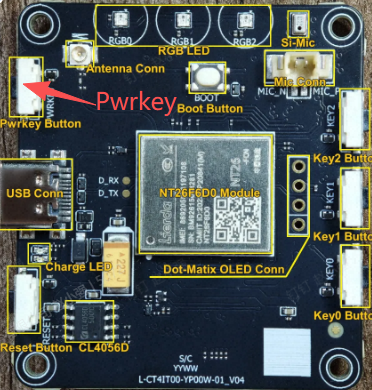
2. Build the project
From the SDK root, run:
make PROJECT=NT26FxDx_OpenKit_TiRTC MODEM=NT26F6D0 MODEMPKG=F6D_A all
The output is under gccout/NT26FxDx_OpenKit_TiRTC/. Use the complete .binpkg generated for NT26F6D0/F6D_A.
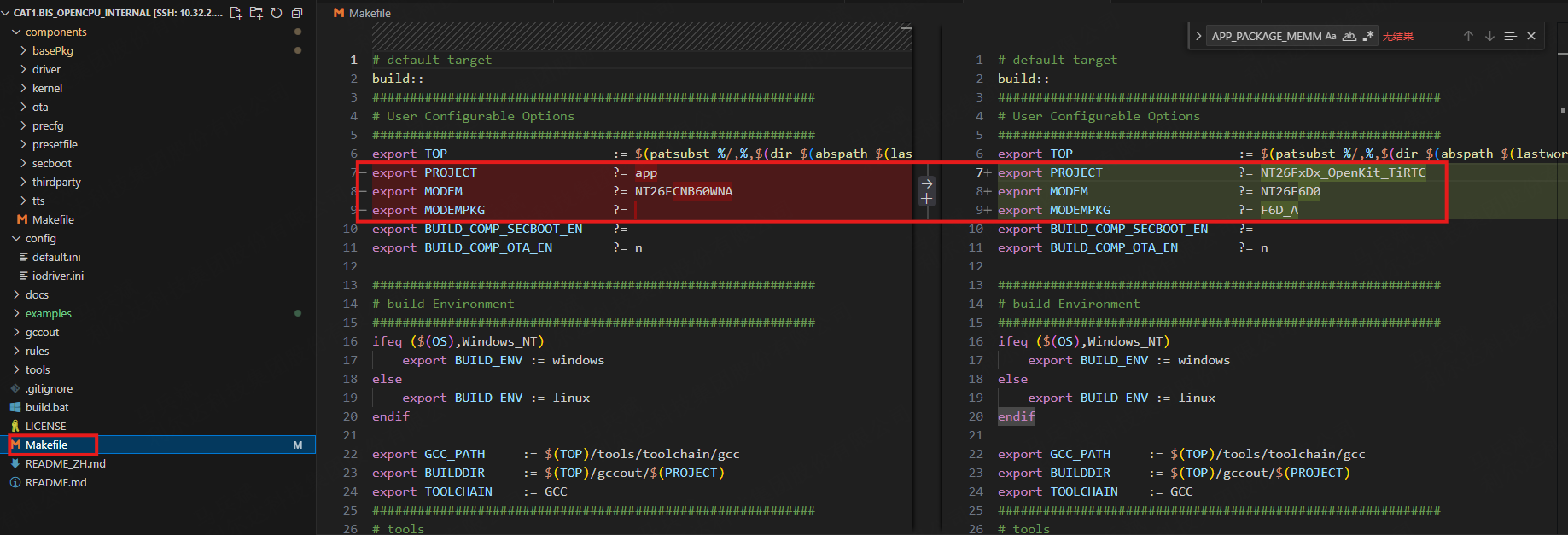
The application configuration is under examples/NT26FxDx_OpenKit_TiRTC/config; the default build enables the OLED, network time, binding, TiRTC runtime, and AI/WX/DEV/LIVE services.
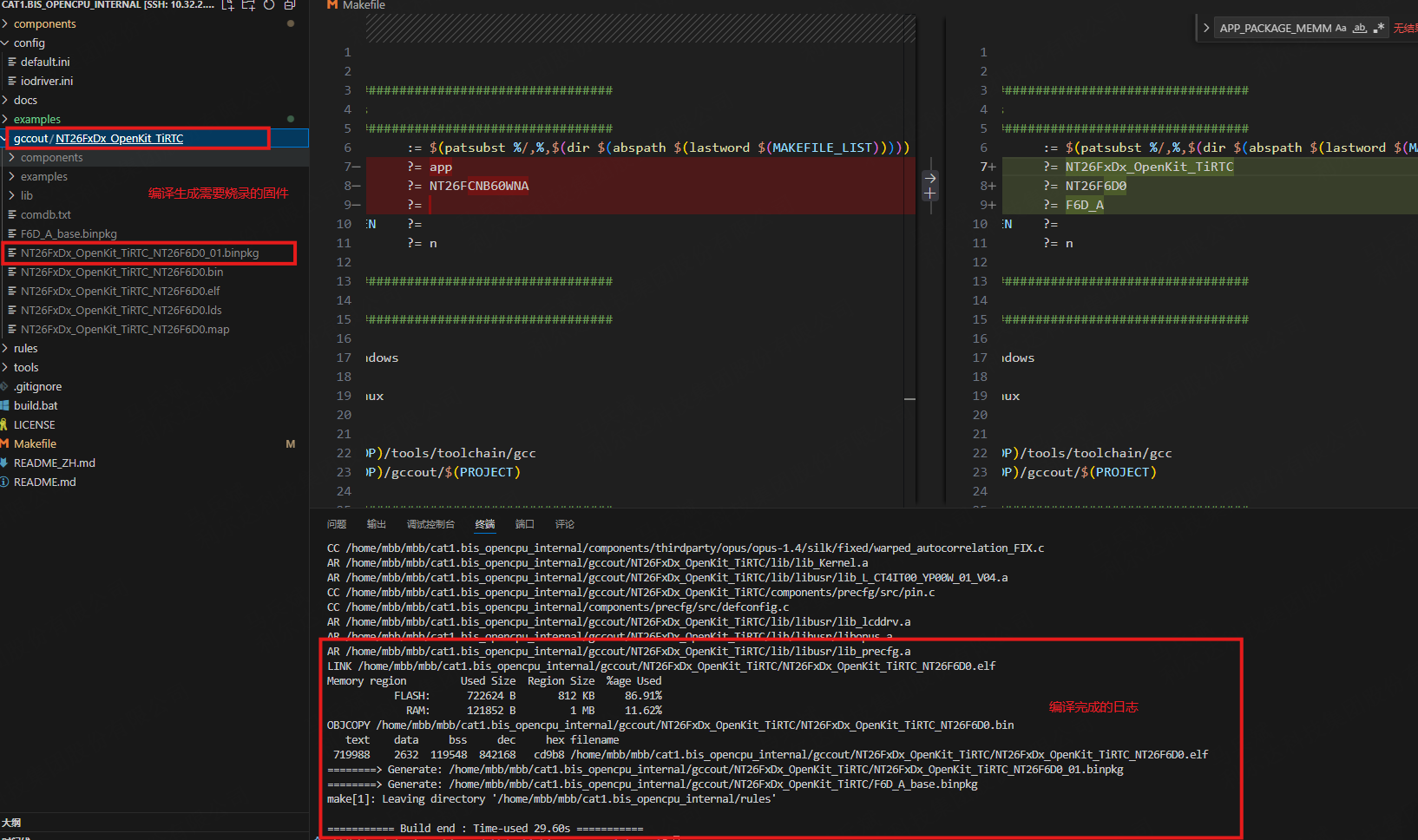
3. Enter download mode and flash
Connect the board to the computer.
Hold
BOOTand pressRESET, or reconnect the USB cable.Confirm that the Lierda download port appears in Device Manager.
Select the TiRTC binpkg in the flashing tool and start the download.
4. First boot and binding
After flashing, wait for the OLED to show UI READY, NET INIT, WAIT LTE, and WAIT 4G. A new device displays a six-digit binding code. Log in to the Tange experience platform, bind the device with that code, and wait for the AI/WX/DEV/SET home page.
Complete web binding with the six-digit code shown on the OLED. The binding flow and platform operation are shown below.
5. Run the first AI demo
Bind an AI agent to the device in the platform.
Select
AIon the OLED and pressKEY1to confirm.Speak after the device enters recording state; release or confirm according to the on-screen prompt.
Wait for the AI response and verify playback through the speaker.
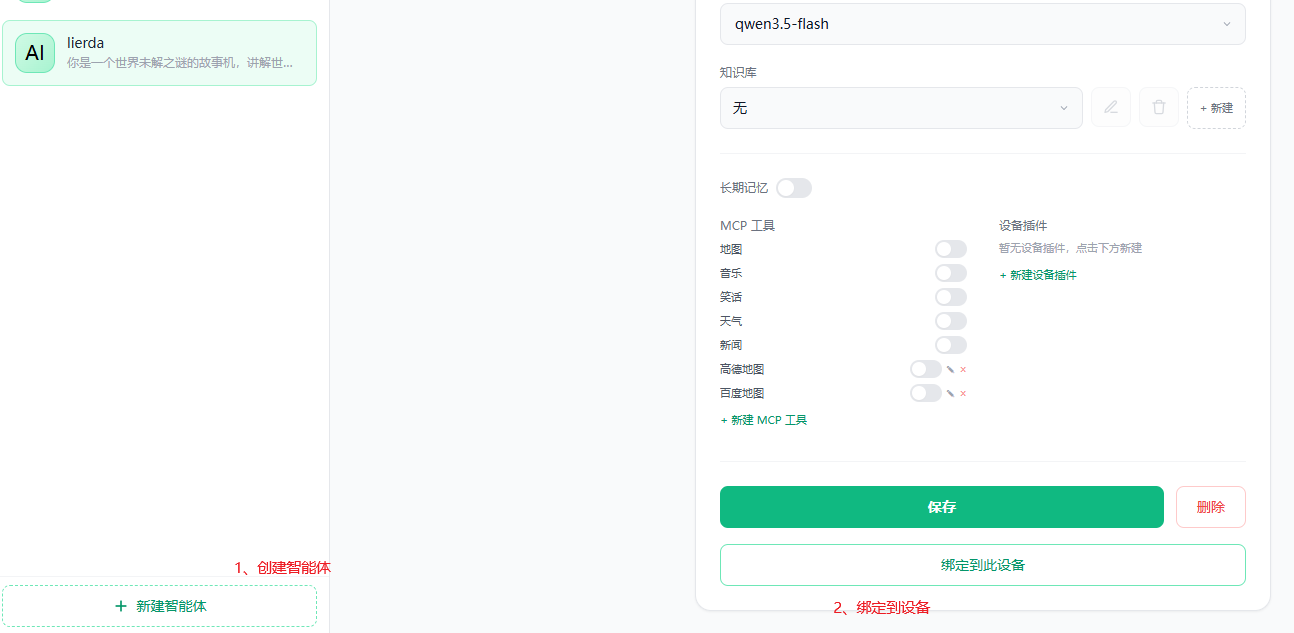
Bind an AI agent to the device before entering the AI page.
6. Check SET and other services
Use SET to adjust speaker volume and microphone gain. WX requires WeChat VoIP authorization and reporting. DEV requires another bound TiRTC device. LIVE is started from the platform web page while the device is idle.
7. Common issues
No OLED output: check the OLED power, I2C1 wiring, 0x3C/0x3D address, and pin 57/66 configuration.
No network: check SIM, antenna, coverage, and the NT26F6D0/F6D_A pairing.
Binding failure: use the latest six-digit code and request a new code after timeout.
No voice: check microphone, speaker, ES8311/I2S initialization, platform authorization, and shared-service conflicts.